What can I do with an appointment?
DownloadThis guide describes the different actions available on an appointment: add a document, turn it into a recorded interaction, edit, cancel, delete.
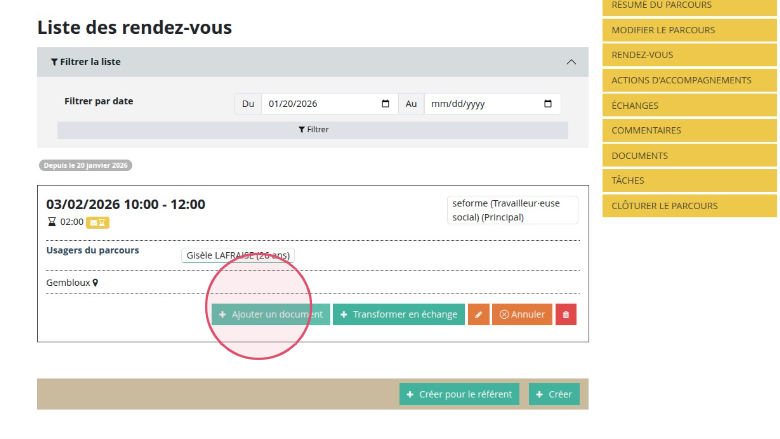
Adding a document
To add a document, click add a document.
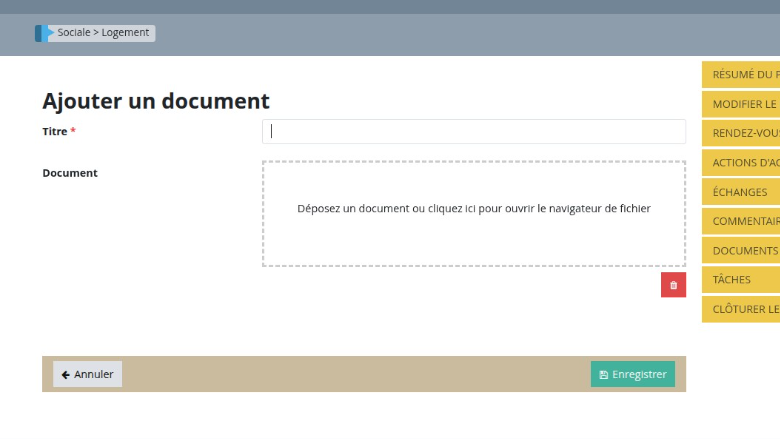
Adding the title and the document
Give the document a title, drop the document in and save. The document is then visible within the appointment.
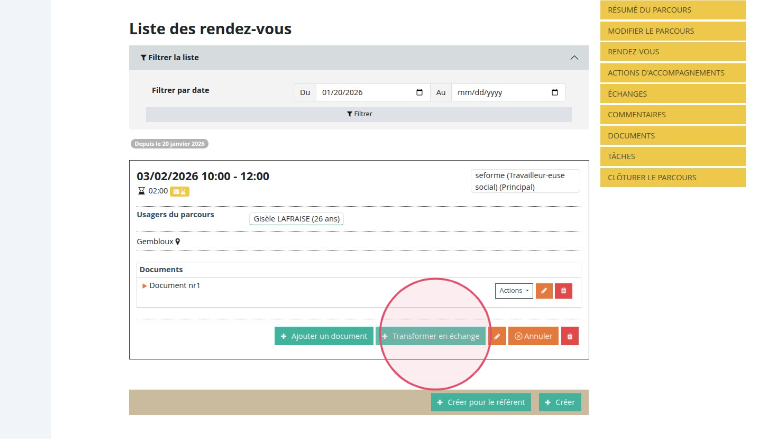
Turning an appointment into a recorded interaction
Turn the appointment into a recorded interaction by clicking “turn into an interaction”. You then simply choose the type of interaction and complete the interaction page.
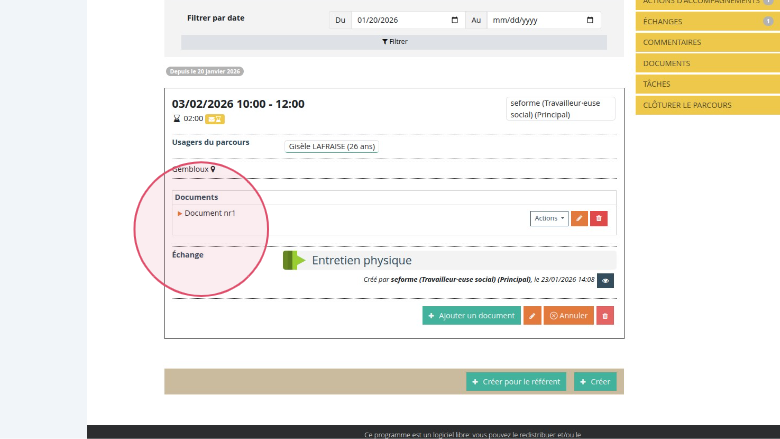
Viewing the document and the interaction
Once the document has been added and the interaction saved, both are visible within the appointment.
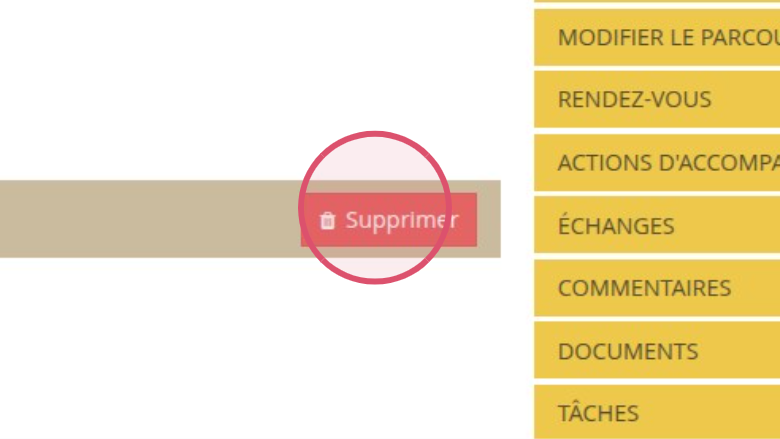
Deleting an appointment
An appointment can be deleted entirely by clicking the small bin and then confirming the deletion.
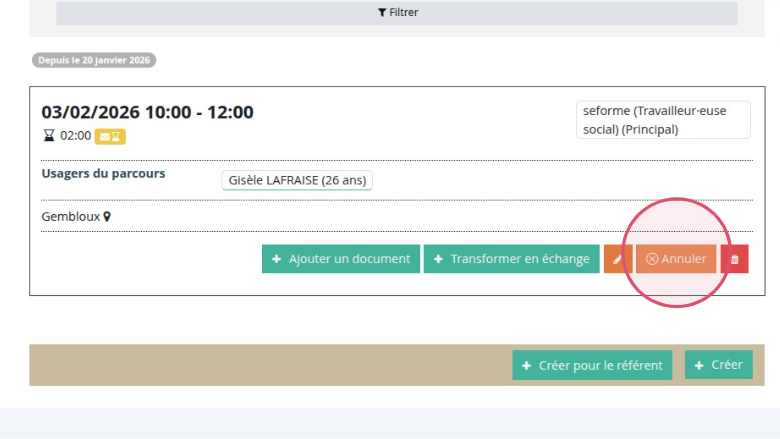
Cancelling an appointment
To cancel an appointment, click “cancel”.
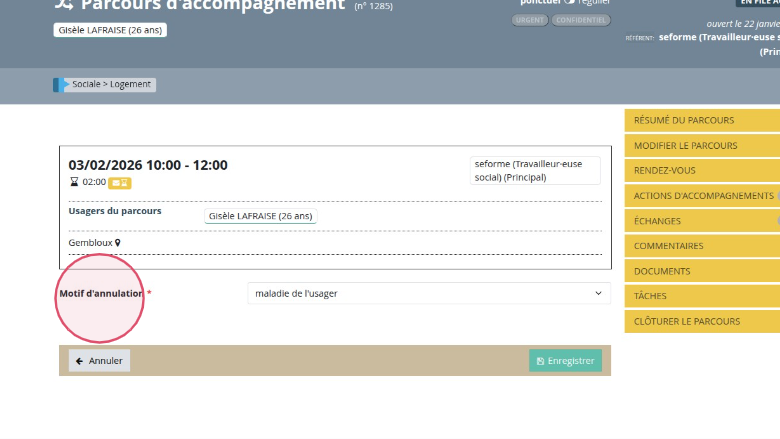
Choosing a cancellation reason
Then choose the cancellation reason (configurable in the admin interface) and click save.
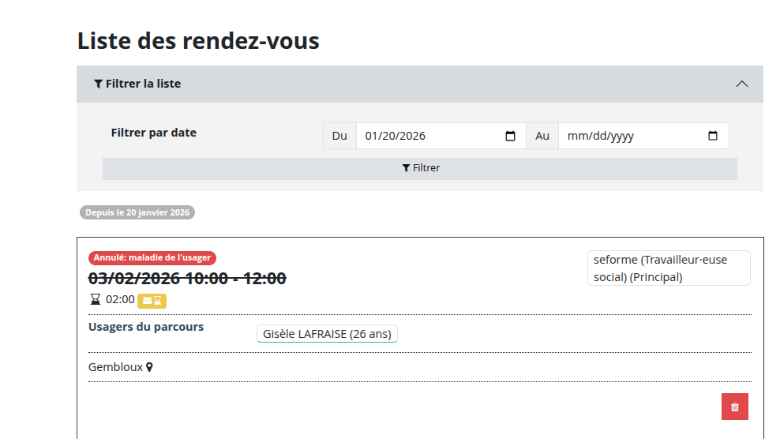
The appointment is cancelled
The appointment and its cancellation reason are visible in the list of appointments. That availability slot becomes free again in the user’s calendar.
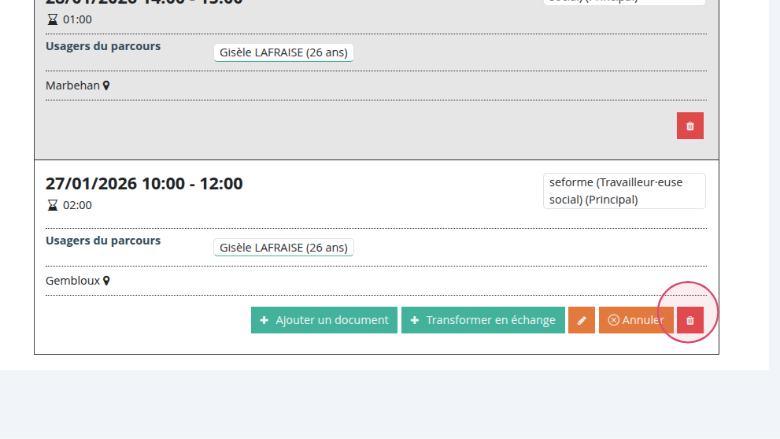
Deleting an appointment
To delete an appointment, click the small bin and confirm the deletion. In this case too, the availability slot becomes free again in the user’s schedule.