How do I use the ticketing tool?
DownloadThis guide describes how to create a ticket, edit it, and view or search for it in a list of tickets.
Ticket dashboard
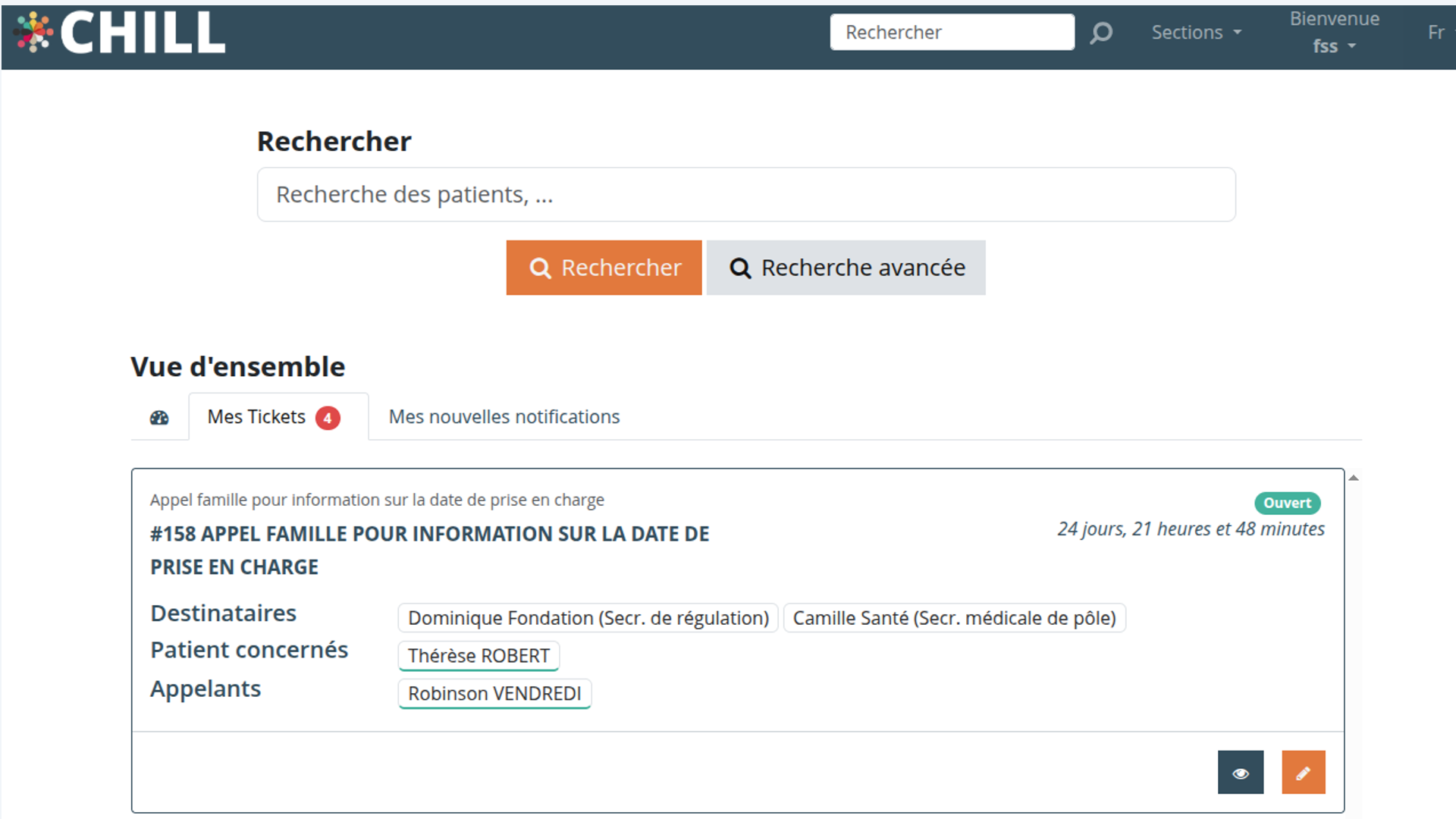
The home page contains the following elements:
a search bar: lets you look for a patient and see their contact details, addresses and the tickets concerning them
my tickets: the list of tickets assigned to me as caseworker that need to be dealt with
my new notifications
sections: gives access to the third parties and tickets sub-sections.
Creating a ticket
There are 2 ways to create a ticket. Either the ticket creation window opens automatically during a call, or you can go to the home page, to the sections/tickets menu, and then click the CREATE button.
Editing a ticket
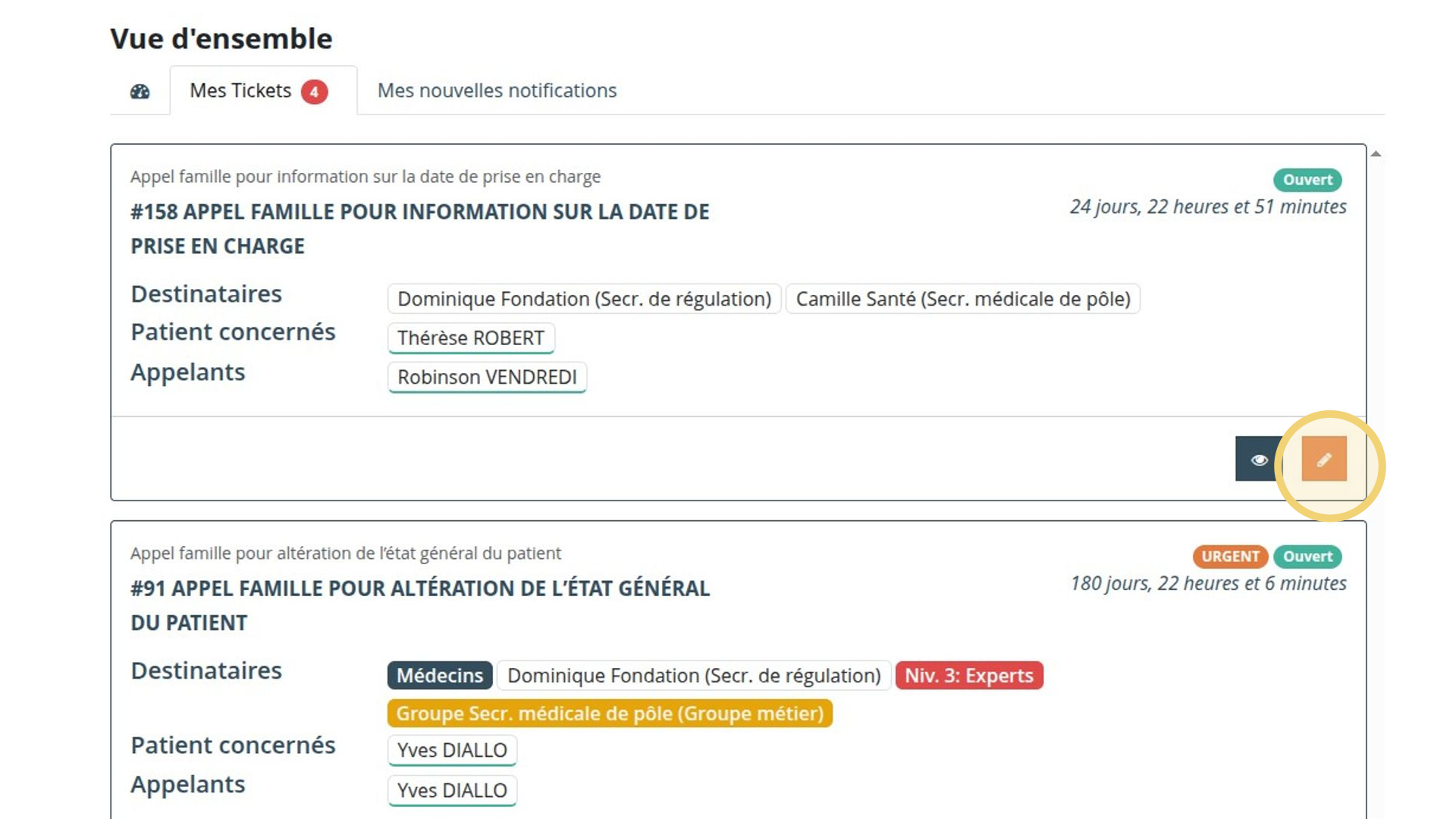
To edit a ticket, use the orange pencil icon; it takes you into the ticket so you can change its details.
Viewing a ticket
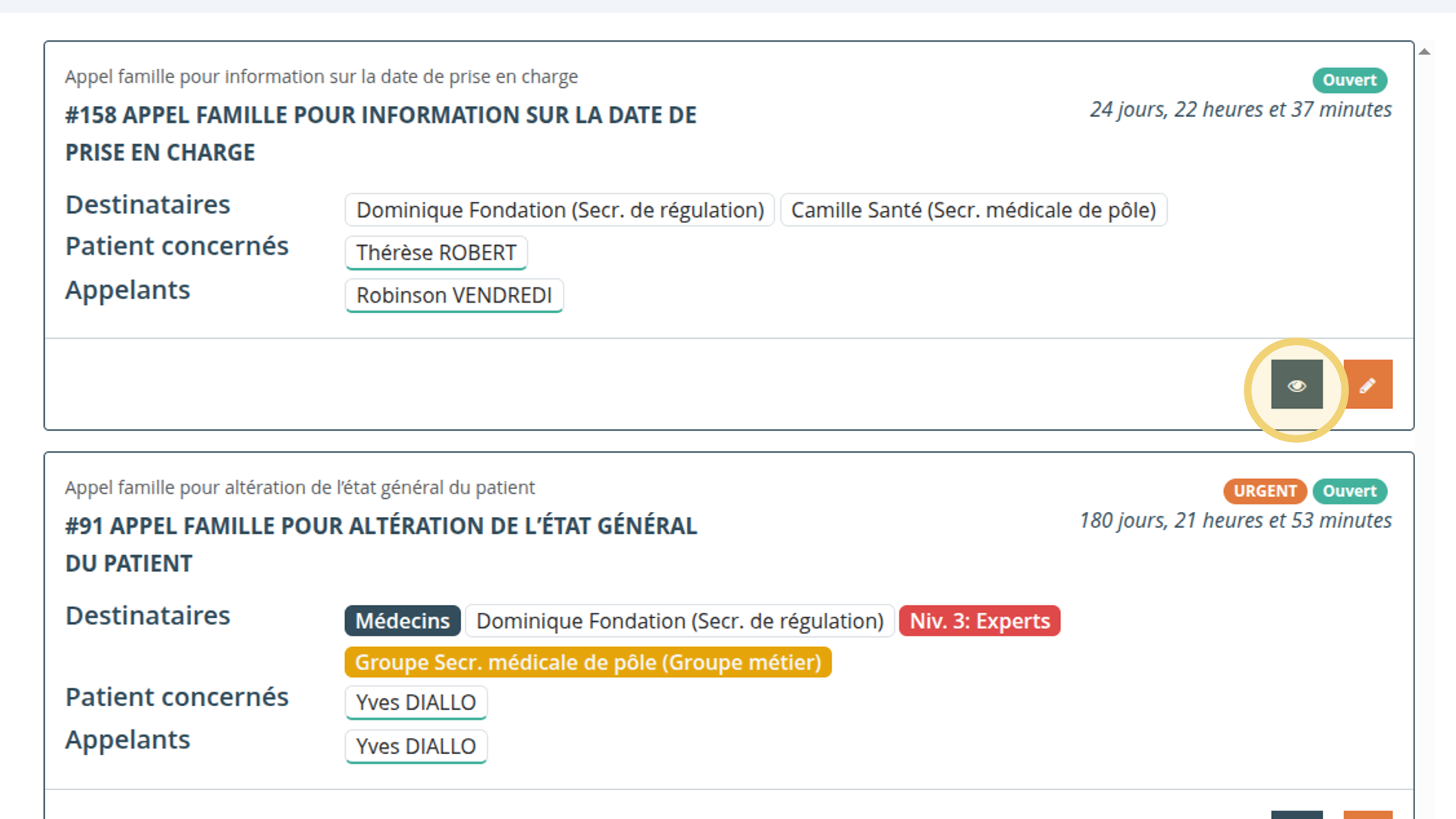
To view a ticket, use the blue eye icon; it takes you into the ticket so you can see all of its details.
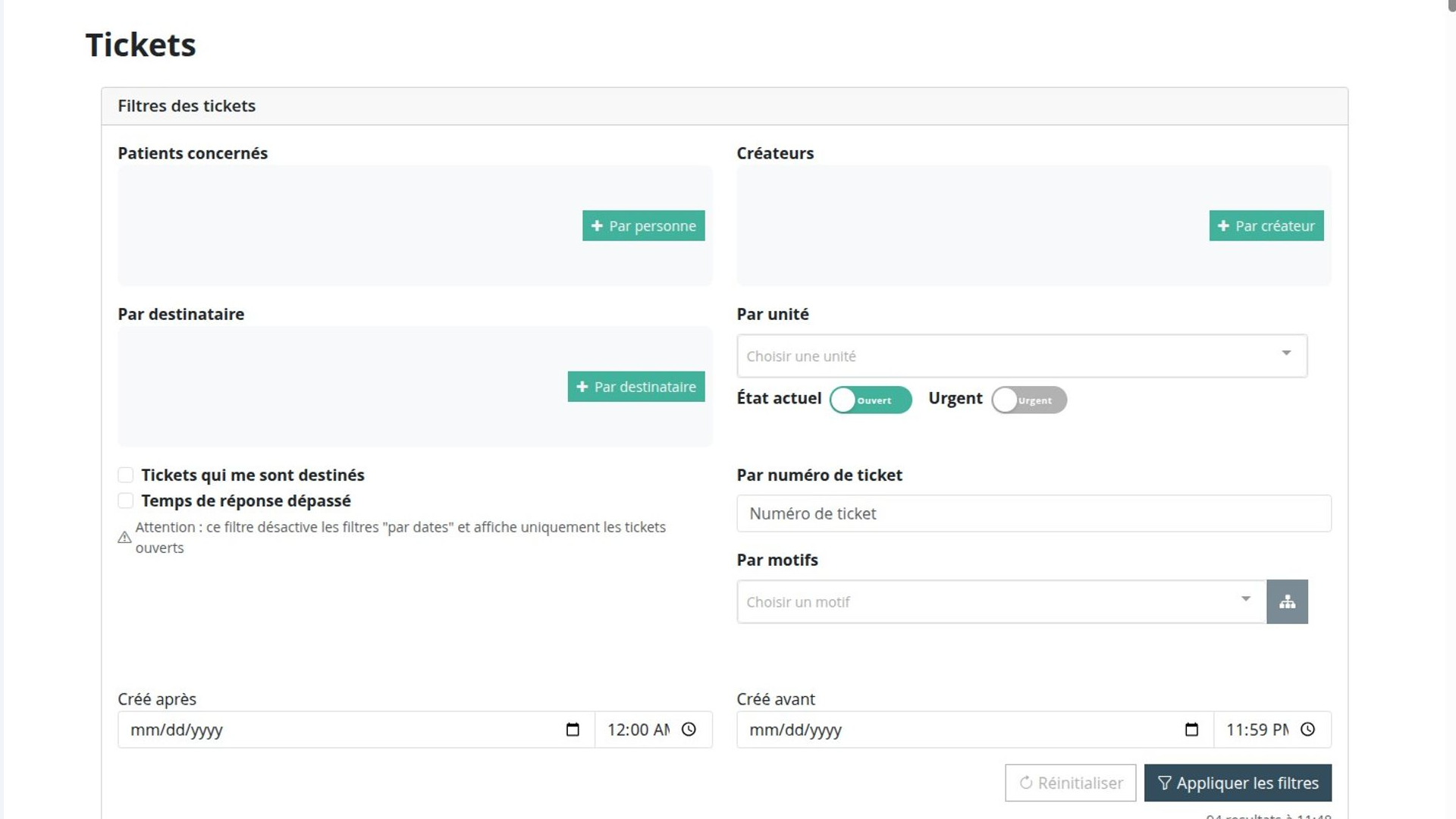
Searching for a ticket
To search for a ticket, go through the “sections” menu to the “tickets” sub-menu. In this window you can filter on a number of fields to narrow down your search.